
1. Giới thiệu
Nếu bạn chơi game trên Windows 11 và cảm thấy máy thỉnh thoảng giật, lag, drop FPS thì rất có thể hệ thống đang chạy nhiều hiệu ứng hoặc tiến trình không cần thiết. Tin vui là Windows 11 có sẵn nhiều tuỳ chỉnh giúp tăng FPS, giảm độ trễ, và tối ưu trải nghiệm chơi game mà không cần cài thêm phần mềm.
Dưới đây là 10 mẹo đơn giản – bật lên là mượt dành cho mọi game thủ.
10 mẹo tăng tốc chơi game trên Windows 11
1) Bật Game Mode
Vào Settings → Gaming → Game Mode → Bật
Game Mode giúp ưu tiên tài nguyên CPU/GPU cho game, giảm tiến trình nền.

2) Tắt Auto-Enhancement trong Graphics Settings
Vào Settings → System → Display → Graphics → Default Settings
Tắt Auto HDR nếu game không hỗ trợ → giảm gánh cho GPU.

3) Bật Hardware-Accelerated GPU Scheduling
Đi đến:
Settings → System → Display → Graphics → Change default graphics settings
→ Bật Hardware-accelerated GPU scheduling
➡️ Giảm độ trễ, tối ưu xử lý GPU.
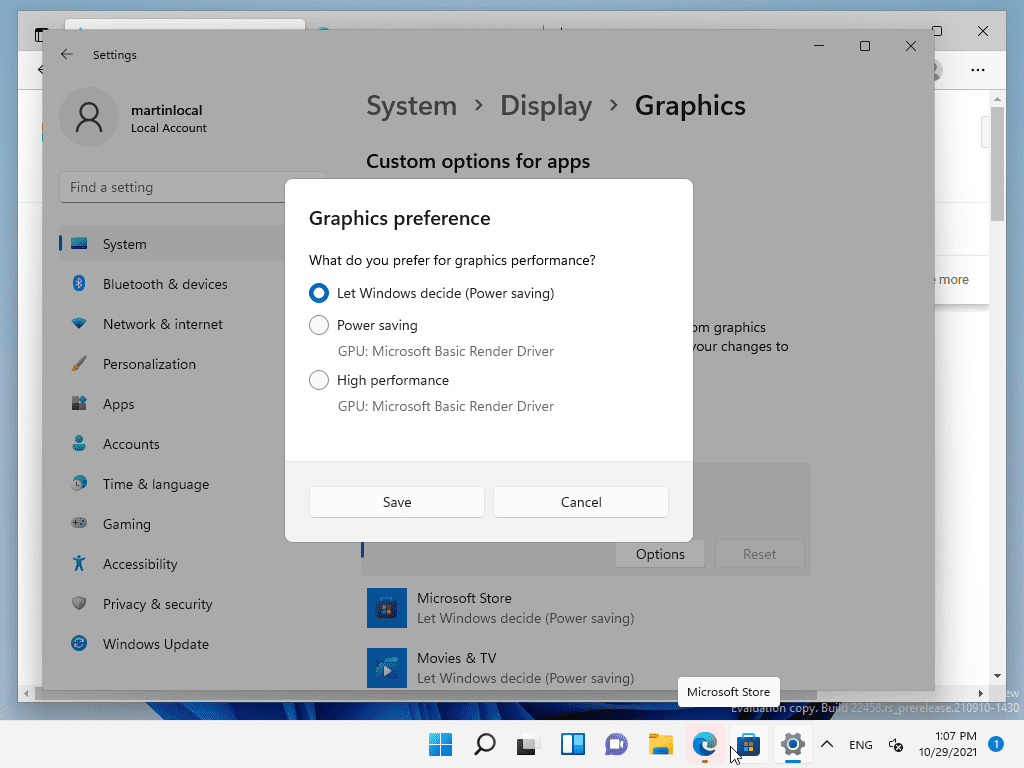
4) Ưu tiên hiệu suất cho game trong Graphics Preference
Settings → System → Display → Graphics
→ Chọn game → Options → Chọn High performance
5) Tắt hiệu ứng hình ảnh để giảm tải CPU
Vào:
Control Panel → System → Advanced system settings → Performance Settings
→ Chọn Adjust for best performance
➡️ FPS ổn định hơn trong game CPU-bound.
6) Tắt Background Apps
Settings → Apps → Installed apps
→ Tắt hoặc gỡ app chạy nền không cần thiết.
➡️ Giảm RAM & CPU sử dụng trước khi vào game.
7) Tắt Xbox Game Bar và Capture
Nếu bạn không dùng quay màn hình:
Settings → Gaming → Captures → Tắt toàn bộ
Settings → Gaming → Xbox Game Bar → Off
➡️ Giảm drop FPS trong nhiều game.
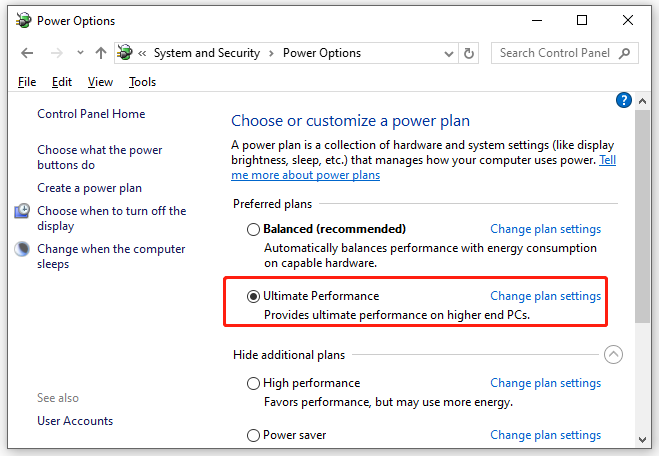
8) Tối ưu Power Plan
Vào Control Panel → Power Options
→ Chọn High Performance hoặc Ultimate Performance (nếu có)
➡️ Tăng hiệu năng CPU cho game.
9) Tắt Memory Integrity (đối với máy yếu)
Settings → Privacy & Security → Windows Security → Device Security → Core Isolation
→ Tắt Memory Integrity
➡️ Tăng FPS (nhất là PC cũ, CPU yếu).
10) Cập nhật Driver GPU
Luôn giữ driver mới để tối ưu hiệu năng:
- NVIDIA GeForce Experience
- AMD Adrenalin
- Intel ARC Control
➡️ Driver mới = FPS tốt hơn, fix lỗi game.
Kết luận
Chỉ cần bật/áp dụng 10 mẹo trên, bạn có thể thấy:
✔ FPS tăng từ 5–20% tùy game
✔ Giảm lag, giảm stutter khi di chuyển
✔ Game load nhanh hơn
✔ Tối ưu tài nguyên hệ thống mà không cần phần mềm thứ ba

